
Invoices, Deposits, and Undeposited Funds in QuickBooks (Owner Guide)
One of the most common sources of bookkeeping errors in QuickBooks is not a complex accounting concept — it is the way deposits and payments get recorded. When this is done incorrectly, revenue appears doubled, bank reconciliations fail to balance, and reports become unreliable without any obvious reason.
The root of the issue is usually a misunderstanding of how QuickBooks expects money to flow: from invoice to payment to deposit. Skipping steps or recording transactions in the wrong place breaks that chain, and the effects show up across multiple reports at once.
This guide explains the correct workflow, what Undeposited Funds is and why it exists, and how to identify and correct the most common mistakes. It is written for business owners who want to understand what their bookkeeper is doing — or catch problems before they compound.
The Basic Flow: Invoice → Payment → Deposit
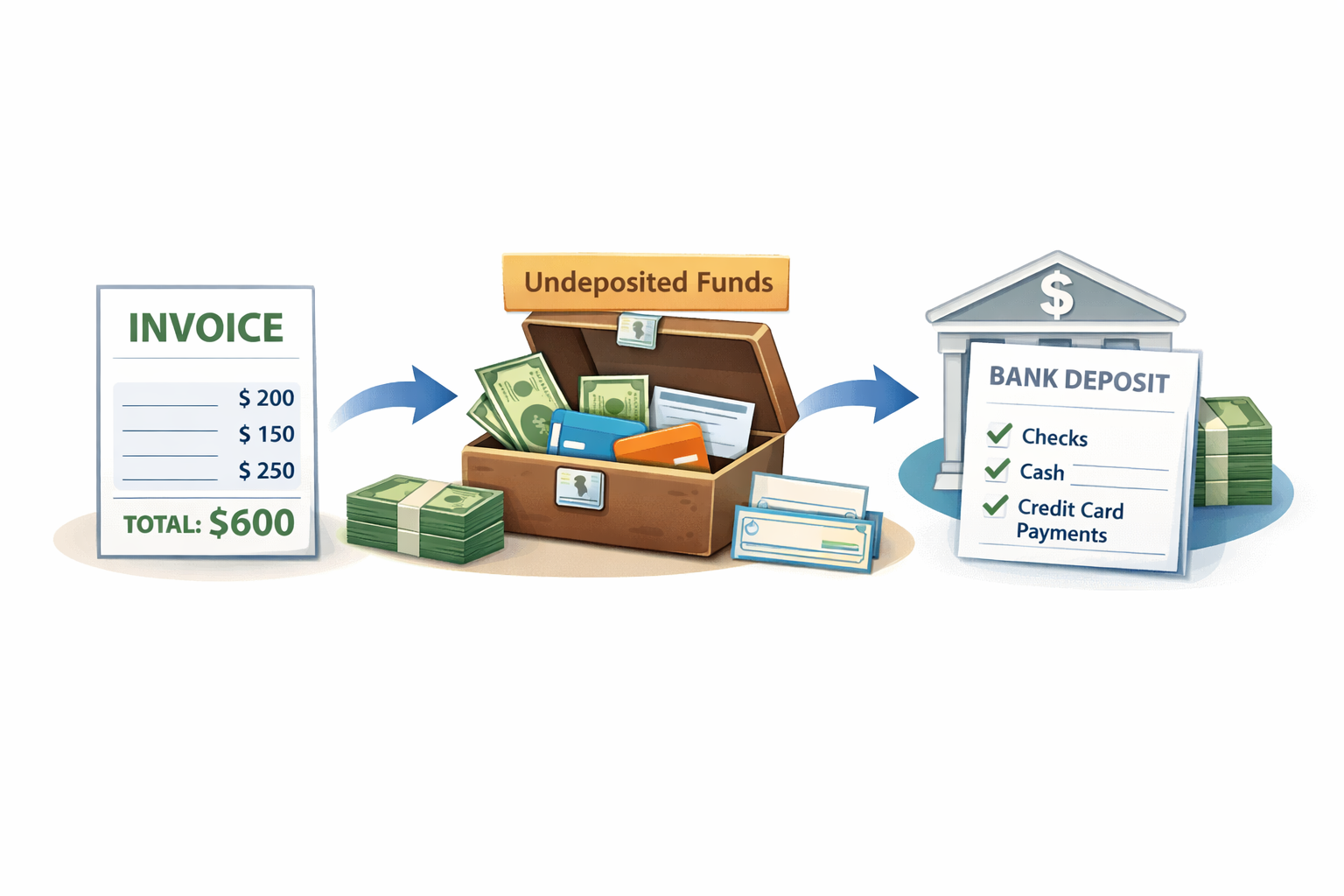
QuickBooks is designed around a three-step process for recording customer payments. Understanding this flow is the foundation for everything else in this guide.
First, you create an invoice. This records that a customer owes you money. It increases Accounts Receivable and recognizes revenue — but no cash has moved yet.
Second, when the customer pays, you record a payment against that invoice. In QuickBooks, this is done through "Receive Payment." The payment clears the invoice from Accounts Receivable and, by default, moves the funds into a holding account called Undeposited Funds.
Third, when you physically deposit the money at the bank — often grouping several payments together — you create a bank deposit in QuickBooks. This moves the funds from Undeposited Funds to your bank account and matches what the bank actually received.
Each step serves a purpose. Skipping or merging them is where problems start.
What Is Undeposited Funds?
Undeposited Funds is a built-in clearing account in QuickBooks. Think of it as a virtual cash drawer: payments land there after you receive them, and they leave when you record the bank deposit.
It exists because real-world bank deposits rarely correspond one-to-one with individual invoices. A single bank deposit might contain three checks from different customers received on different days. Undeposited Funds holds those payments until you group them into a deposit that matches your actual bank statement.
Without this account, reconciling your bank would require matching each individual payment to a separate deposit — which is rarely how banking works in practice.
A healthy Undeposited Funds balance should be close to zero at month-end, or contain only payments received but not yet deposited. A large or growing balance usually means payments were received in QuickBooks but the deposit step was never completed.
Mini-Scenario #1: One Bank Deposit, Multiple Payments
A landscaping company receives three customer payments in one week: $1,200, $850, and $640. On Friday, the owner deposits all three checks at the bank in a single transaction — the bank records one deposit of $2,690.
In QuickBooks, each payment was correctly received against its invoice and moved to Undeposited Funds. When the owner records the bank deposit, they select all three payments and create one deposit of $2,690. QuickBooks matches this to the bank feed perfectly.
Now consider what happens if the owner skips the Receive Payment step and instead records three separate deposits directly to the bank account — each one coded to income. The bank still shows one deposit of $2,690. QuickBooks now shows three separate income entries and three separate deposits. During reconciliation, the bank shows one transaction; QuickBooks shows three. Nothing matches. Revenue is overstated. The reconciliation fails.
The fix is not in the reconciliation — it is upstream, in recording payments through the correct workflow from the start.
Mini-Scenario #2: Deposits Recorded Directly to Income
A consulting firm invoices a client for $5,000. The invoice is created correctly in QuickBooks and sits in Accounts Receivable. The client pays by bank transfer. The owner sees the $5,000 appear in the bank feed and, instead of matching it to the open invoice, clicks "Add" and categorizes it as consulting income.
QuickBooks now has two records of $5,000: the original invoice (which is still open in Accounts Receivable) and the new income entry from the bank feed. Revenue is double-counted. The client's balance still shows as unpaid. Reports overstate income by $5,000.
This is one of the most common errors in QuickBooks and one of the hardest to spot without a deliberate AR review. The correct action was to match the bank feed transaction to the existing invoice — not add it as new income.
If the deposit was recorded incorrectly, the fix requires deleting or voiding the duplicate entry and properly matching the payment to the invoice.
Common Problems: Symptom, Cause, and Fix
| Symptom | Cause | Fix |
|---|---|---|
| Bank reconciliation won't balance | Payments received in QuickBooks were never grouped into a deposit matching the bank | Create a bank deposit in QuickBooks that matches the actual bank transaction amount and date |
| Revenue is higher than expected on the P&L | Bank feed deposits were added as income while the original invoice was left open | Delete the duplicate bank feed income entry and match the payment to the open invoice |
| Undeposited Funds balance keeps growing | Payments were received in QuickBooks but the bank deposit step was never completed | Review the Undeposited Funds account, match payments to actual deposits, and clear the balance |
| Customer shows as unpaid after you received their money | Payment was recorded to bank directly, not applied to the invoice through Receive Payment | Use Receive Payment to apply the payment to the invoice; remove the duplicate bank entry if present |
| Deposit amount in QuickBooks doesn't match the bank | Processing fees or tips were not accounted for when recording the deposit | Add a separate line in the deposit for fees (as an expense) or tips (as income) to make the total match |
Invoice vs. Sales Receipt: Which to Use
QuickBooks offers two ways to record a sale, and choosing the wrong one contributes to many of the problems above.
An invoice is used when the customer will pay later. It creates an open balance in Accounts Receivable. You then record a payment when the money arrives. This is the correct workflow for businesses that bill clients and wait for payment.
A sales receipt is used when the customer pays immediately at the time of the transaction. There is no open invoice and no AR entry. The payment goes directly to Undeposited Funds (or your bank, if you change the setting). This is appropriate for retail, point-of-sale, or any transaction where payment is simultaneous with the sale.
Mixing the two — creating an invoice and then also recording a sales receipt for the same transaction — is a reliable way to double-count revenue. Decide which workflow fits each type of customer interaction and apply it consistently.
Tips and Processing Fees
When payments come through Stripe, Square, PayPal, or similar processors, the amount deposited to your bank is almost always less than the invoice amount. The processor deducts its fee before sending the funds.
If you record the deposit in QuickBooks for the full invoice amount, it will not match the bank. If you record it for the net amount, the invoice is not fully cleared.
The correct approach is to record the full payment against the invoice first, then account for the processing fee as a separate line item in the bank deposit — categorized as a bank or merchant fee expense. The deposit total will then match what the bank received.
Tips work similarly. If a customer adds a tip on top of the invoice amount, the bank deposit will be higher than the invoice. Record the tip as a separate line in the deposit, categorized as tip income or a separate service revenue account. This keeps both the invoice and the bank deposit accurate.
What to Review Each Month
- Run the Undeposited Funds account register and confirm the balance is zero or contains only payments from the last few days of the month. Anything older needs to be investigated.
- Run the Accounts Receivable Aging report and look for invoices marked unpaid that you know have been paid. These are likely missing Receive Payment entries.
- Review the Profit & Loss and compare revenue to what you actually invoiced. A significant gap in either direction often points to a deposit or payment recording error.
- During bank reconciliation, confirm that each QuickBooks deposit matches a real bank transaction in both amount and date. Discrepancies indicate a grouping or fee issue.
- If you use a payment processor, verify that processing fees are captured as expenses and not simply missing from the books.
Why This Matters Beyond Clean Books
Recording invoices and deposits incorrectly does not just cause reconciliation headaches. It distorts every report that depends on accurate revenue data: your P&L, your sales tax liability, your cash flow statement, and any reports you use for business decisions or tax preparation.
Overstated revenue means overstated taxable income. Undeposited Funds that never clears means your Balance Sheet shows phantom assets. Open invoices for customers who already paid means you may chase payments unnecessarily or misread your collections performance.
Getting this workflow right is one of the highest-leverage fixes in QuickBooks bookkeeping — and once it is set up correctly, it runs cleanly with very little effort.
If your reports are showing unexplained gaps or your reconciliations are consistently off, the deposit and payment workflow is usually the first place to look. See our bookkeeping services or review pricing options to understand how we can help.
You can also explore more guides in our blog or review the related article: How to Read a Profit & Loss Report.
Fix your deposit workflow
If your reconciliations are off or revenue doesn't match what you invoiced, the issue is usually in how deposits are recorded. We can review your QuickBooks setup and correct the workflow.
FAQ
What is Undeposited Funds?
Undeposited Funds is a built-in clearing account in QuickBooks that holds customer payments after they are received but before they are grouped into a bank deposit. It acts as a temporary holding area so that multiple payments can be combined into a single deposit that matches your actual bank transaction.
What is the difference between an invoice and a sales receipt?
An invoice is used when the customer will pay at a later date — it creates an open balance in Accounts Receivable. A sales receipt is used when the customer pays immediately at the time of the transaction — there is no open AR entry. Using both for the same transaction will double-count the revenue.
Why doesn't my deposit in QuickBooks match the bank?
The most common reasons are: processing fees deducted by a payment processor before the funds reach your account, tips added by the customer that were not recorded separately, or payments grouped incorrectly in the deposit. Each of these requires a separate line item adjustment in the bank deposit to reconcile the amounts.
How do I handle payment processing fees in QuickBooks?
Record the full payment against the invoice first. Then, when creating the bank deposit, add a separate line for the processing fee as a negative amount categorized as a bank fee or merchant fee expense. The deposit total will then equal the net amount the bank received, and the invoice will be fully cleared.
Why does my customer still show as unpaid after I received their money?
This usually means the payment was recorded directly to the bank account — either through the bank feed or a manual entry — without being applied to the invoice using Receive Payment. The invoice remains open in Accounts Receivable because it was never formally closed. Apply the payment to the invoice and remove any duplicate bank entry.
Can I turn off Undeposited Funds?
Yes. In QuickBooks settings, you can change the default deposit account so payments go directly to your bank account instead of Undeposited Funds. This works cleanly if every payment corresponds to its own separate bank deposit. If you batch deposits, keeping Undeposited Funds active is the better approach.
“Bookkeeping services and financial performance control for your business”. Learn reports and financial management without unnecessary complexity:
“All blog materials for business owners”. Learn to read profit instead of just checking your bank balance:
“P&L explained: revenue, expenses, and real business profit”.